Quick answer
To schedule app blocking in Respite, open You, then Limits and pauses, then Schedules, and add a schedule with a name, days, start and end times and the apps to block. Free includes one schedule; Respite Plus has no limit, and up to eight can run at once. A pass or a snooze does not lift a running schedule.
- Find it at Limits and pauses, then Schedules, on both iPhone and Android.
- A schedule has a name, days, hours and the apps it blocks; Bedtime, Work hours and Morning are ready-made.
- Free includes 1 schedule; Plus has no limit, with up to 8 running at once.
- If Plus ends, your first schedule keeps running and the rest are paused, never deleted.
A daily limit is good at one thing: telling you when you have had enough. It is not good at the hours when you simply should not be on the apps at all, like the last hour before bed or the middle of the working day. That is what a schedule is for. Here is how to set one up in Respite on iPhone or Android, what the free plan allows, and a few combinations that work.
How do I schedule app blocking in Respite?
- Add the apps first. A schedule blocks apps you already track, so open Home and add them (or pick them in Limits and pauses). If the list is empty, the schedule editor says so.
- Open Schedules. Go to the You tab, then Limits and pauses, then Schedules.
- Add a schedule. Choose Add a schedule. You can start from a template or build your own.
- Set the days and hours. Pick the days of the week, then a start and an end time.
- Choose what to block. Under Blocks, pick the apps this schedule closes during its hours.
- Save. It switches on and runs by itself.
On iPhone, schedules use Apple’s Screen Time, so the block holds even when Respite is not open. See how to block apps on iPhone for the wider picture of what iPhone can and cannot block.
What are the ready-made schedules?
Three templates fill in sensible defaults, which you can change:
| Template | Days | Hours |
|---|---|---|
| Bedtime | Every day | 22:00 to 07:00 |
| Work hours | Monday to Friday | 09:00 to 17:00 |
| Morning | Every day | 06:00 to 09:00 |
A window that crosses midnight, like Bedtime, ends the next morning. The shortest window is 15 minutes.
How do schedules behave?
- A pass or a snooze does not lift a schedule. A schedule is the firm one. If you want a gentle pause, use a daily limit or the pause itself.
- A running schedule is locked. It cannot be edited until it ends, so you cannot talk yourself out of it at 10:30 pm.
- Times follow your phone’s clock. On a daylight saving night a window is an hour longer or shorter.
- Up to eight schedules can be on at once. More can exist, but only eight run together.
Free vs Respite Plus
| Free | Plus | |
|---|---|---|
| Schedules you can have | 1 | Unlimited |
| Running at once | 1 | Up to 8 |
| Templates | Yes | Yes |
| Sync schedules between your devices | No | Yes |
If you have more than one schedule on the free plan, Respite tells you “Only your first schedule is running”, and the others are saved, not deleted. They start running again if you upgrade. The full list of what Plus includes is in Respite Plus: everything that is included.
Which schedules are worth having?
The best schedule is one you will not resent. Three that tend to stick:
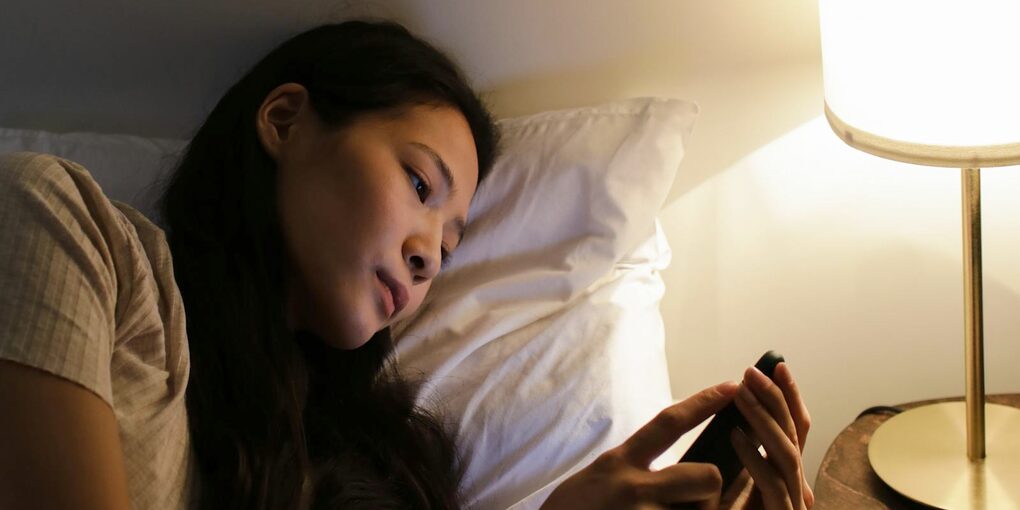
- Bedtime, social and video apps. The single most effective schedule for most people; see how to stop scrolling at night.
- Work hours, the two or three apps that eat your afternoon. A short list beats a long one.
- Morning, one app only. If you check your phone before getting up, try this morning routine first and add a schedule if it is not enough.
Does scheduled blocking work, or do people just get around it?
Hard blocks help for short, defined stretches and are easier to get around the more of your life they cover. A schedule on the apps you struggle with, plus a pause for everything else, is a better mix than blocking everything. We looked at the evidence in do app blockers actually work? and compare approaches in pauses vs blocking.
Troubleshooting
- My schedule is not running. Check that it has days and apps chosen and is switched on. On the free plan only the first schedule runs.
- It ran at the wrong time. Times follow the phone’s clock and time zone; check both.
- I cannot edit it. It is running now. Edit it after it ends.
Next step
Download Respite, add the one app that eats your evening, and set a Bedtime schedule. One is free.
Related articles
Frequently asked questions
How do I schedule app blocking on iPhone?
In Respite, add the apps you want to control, then open You, Limits and pauses, Schedules. Add a schedule, choose the days and hours, and pick the apps to block. On iPhone it uses Apple's Screen Time, so the apps stay private and the block applies even when Respite is closed.
Can I schedule app blocking on Android?
Yes. Respite for Android has the same Schedules screen under Limits and pauses, with the same templates, days and hours. A schedule closes the apps you chose during its window, and a snooze or pass does not lift it. Schedules sync with your iPhone if you have Respite Plus and are signed in.
How many schedules can I have for free?
One. Respite Plus removes the limit, though up to eight schedules can be switched on at once. If you stop paying for Plus, your first schedule keeps running and the others are paused rather than deleted, so they return as soon as Plus does.
Can a schedule cross midnight?
Yes. A schedule from 22:00 to 07:00 is treated as ending the next morning, which is how the Bedtime template works. The shortest window you can set is 15 minutes, and the times follow your phone's clock, so a daylight saving night makes it an hour longer or shorter.
Is scheduled blocking better than a daily limit?
They do different jobs. A daily limit says how much of an app you can have. A schedule says when you cannot have it at all. Many people use a limit for everyday apps and a schedule for bedtime and work hours, because the two together cover both habits and boundaries.
Keep Reading

